This isn't exactly a programming-related post, but I had a problem that kept bugging me, so I finally decided to sit down and fix it today. I ended up writing a monitor .inf file for the Soyo Topaz 24"; this .inf file fixes two common problems:
- Users cannot select the native 1920x1200 resolution
- Games fail with a "Signal out of range" error
Like many other people, I got in on the nice OfficeMax Black Friday sale about a year ago, scooping up (among other things) a Soyo Topaz S 24" widescreen monitor... nice.
However, like many other people, I had problems with Windows recognizing the natural display resolution of 1920x1200. It turns out that this monitor does not correctly report its supported resolutions; furthermore, Soyo's tech support leaves quite a bit to be desired - they have yet to admit that there is a problem.
A lot of folks simply returned their monitors, but I went the route of a few others, disabling Windows' restrictions on resolutions. One obvious problem with this approach is that if you select a wrong resolution you can actually damage the hardware (at least, I know this used to be true, and the warning is still in the Windows dialog box). You just have to be careful not to select resolutions or refresh rates your monitor doesn't support.
I was happily using my monitor in this fashion until today, when I tried to install a DirectX game. Like many other games, it automatically attempted to raise the refresh rate - not realizing that the monitor is an LCD and not CRT. This resulted in the infamous "Signal out of range" monitor message. In fact, no matter what I tried, this would happen, because even restricting to the monitor's supported resolutions did not restrict the frame rate (bad, Soyo, bad!)
So, I decided to whip out the Soyo manual and make a custom monitor .inf file for my Soyo monitor... since they weren't going to do it. It took a bit more tinkering and time than I expected, but at the end of the day I was the proud owner of a monitor .inf file for the Soyo Topaz DYLM24D6.
I decided to release this little utility for free on SourceForge. This should work for every commonly-used Windows system (2000, XP, 2003, Vista, 2008 / x86, x64, IA-64), although I've only thoroughly tested it on Vista x64.
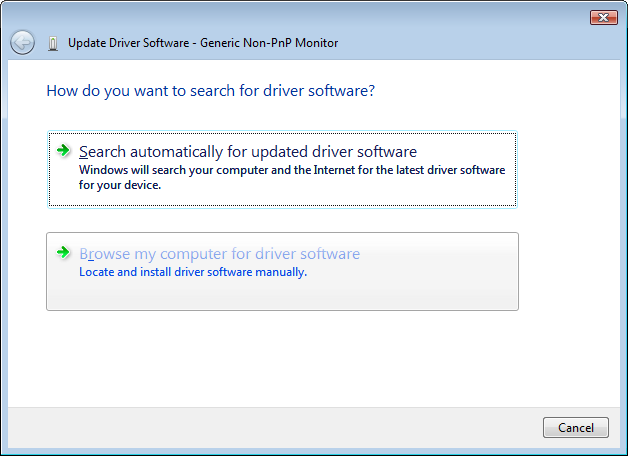
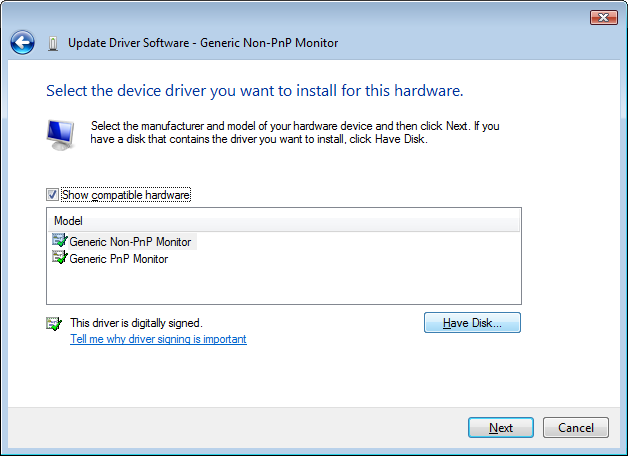
To install it, just right-click on the "Generic Non-PnP Monitor" in the Device Manager, update the drivers, and select the inf file.
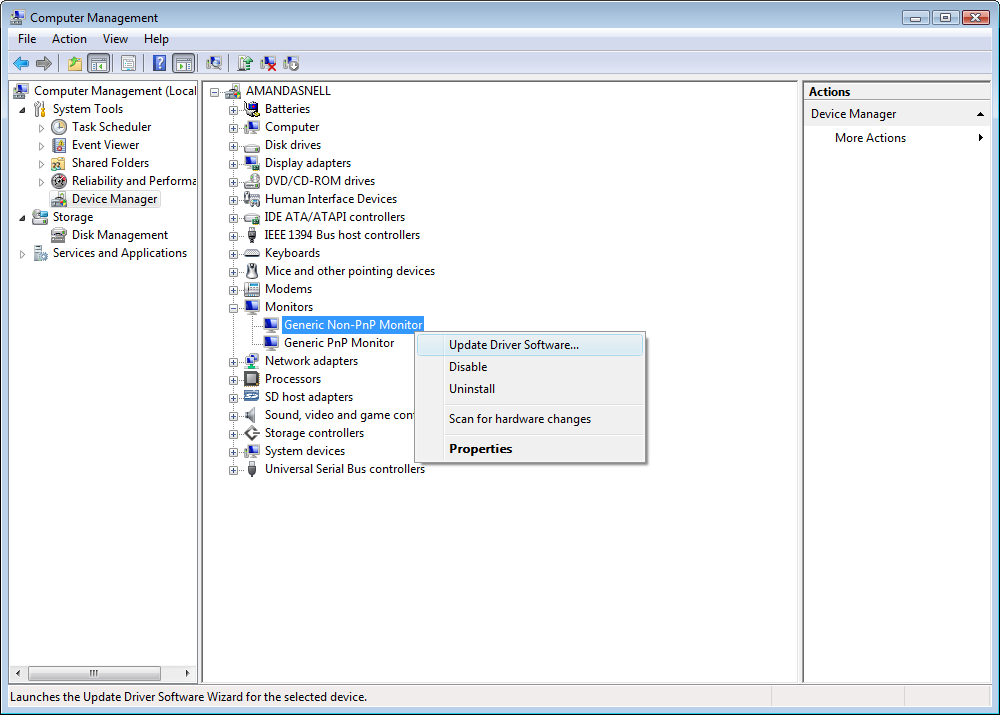
Right-click the "Generic Non-PnP Monitor" and select "Update Driver Software..."
Choose "Browse my computer for driver software"
Choose "Let me pick from a list of device drivers on my computer"
Select the Soyo.inf that was downloaded from SourceForge.net
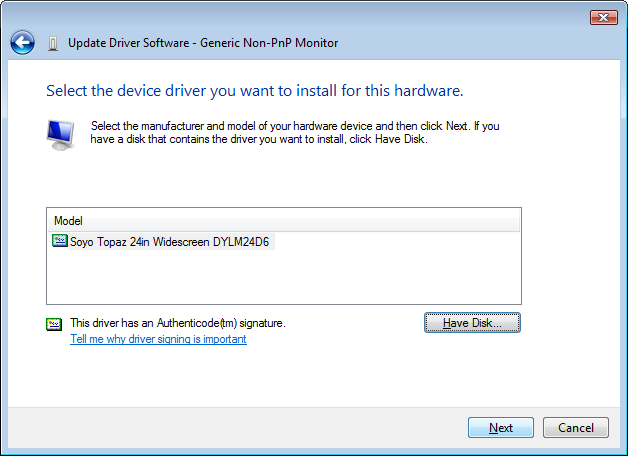
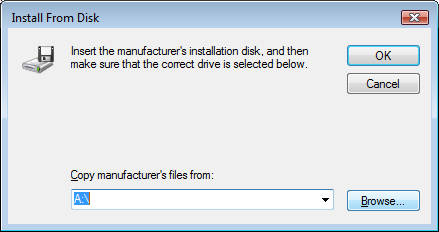
Click "Have Disk..."
Click "Browse..."
Click "Next"
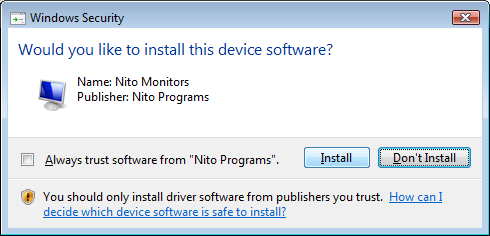
Confirm security question
THANKS STEPHEN!!!!
ReplyDeleteI installed Windows 7 yesterday and every thing was great (ie i was able to use the Soyo Topaz S @ 1900x1200)..... then all of a sudden the monotir revert back to 1024x768 and I couldn't increase it. The fricking soyo web has been down for days, but your monitor driver saved the day
Thanks!!!
First of all a big thanks to Stephen.
ReplyDeleteI don't seem to be able to make Windows 7 recognize native resolution of the SOYO monitor.
However in Vista the INF works perfectly, although Vista used to be able to recognize this monitors native resolution during/after install that changed after I re-installed a fresh copy.
thank you thank you thank you....it was an easy install...works great !!
ReplyDeleteoh man, I got so excited when I found this post, I have been using windows 7, with the 24" soyo "pearl" monitor, everything has been fine for weeks and then I turned the computer on the other day and the resolution would not be recognized... max 1024X768, or 1600x1200 with the vga cable. I can't for the life of me figure it out. Sadly this custom driver did not work for me, sucks, I was so optimistic.
ReplyDeleteyeah, it doesnt work for me either. i can find no solution :[
ReplyDeletestill not working for me, i have the 24" topaz s on win 7. I followed all the steps, should I disable the "generic non pnp"?
ReplyDeleteNot working for me either.
ReplyDeleteI'm using the 24" Topaz S and windows XP.
Well, after much playing around with the .inf and the nvidia display manager, this did work for Windows 7
ReplyDeleteUnfortunately, this inf does not include the raw EDID binary data, which I need to resolve my resolution problem. Even after installing this, powerstrip indicates no EDID EEPROM is present.
ReplyDeleteI hope this help others.
ReplyDeleteWith powerstrip and the following inf with EDID, I was able to use the 1920x1200 res.
; INF file generated by Monitor Asset Manager, 2010/9/17
; Copyright (c) EnTech Taiwan, 1995-2010.
; Internet: http://www.entechtaiwan.com
[Version]
Signature="$WINDOWS NT$"
Class=Monitor
ClassGUID={4d36e96e-e325-11ce-bfc1-08002be10318}
Provider=%MFG%
DriverVer=2010/9/17, 1.0.0.0
;CatalogFile=YourSignedCatalogFile.cat
[DestinationDirs]
DefaultDestDir=23
[SourceDisksNames]
1=%DISC%
[SourceDisksFiles]
;YourColorProfileFile.icm
[Manufacturer]
%VENDOR%=EDID_OVERRIDE,NTx86,NTamd64
[EDID_OVERRIDE.NTx86]
%PRODUCTID%=OVERRIDDEN-EDID.Install, MONITOR\XXX0000
[EDID_OVERRIDE.NTamd64]
%PRODUCTID%=OVERRIDDEN-EDID.Install.NTamd64, MONITOR\XXX0000
[OVERRIDDEN-EDID.Install.NTx86]
DelReg=DEL_CURRENT_REG
AddReg=OVERRIDDEN-EDID.AddReg, MODE1, DPMS
CopyFiles=OVERRIDDEN-EDID.CopyFiles
[OVERRIDDEN-EDID.Install.NTamd64]
DelReg=DEL_CURRENT_REG
AddReg=OVERRIDDEN-EDID.AddReg, MODE1, DPMS
CopyFiles=OVERRIDDEN-EDID.CopyFiles
[OVERRIDDEN-EDID.Install.NTx86.HW]
AddReg=OVERRIDDEN-EDID_AddReg
[OVERRIDDEN-EDID.Install.NTamd64.HW]
AddReg=OVERRIDDEN-EDID_AddReg
[OVERRIDDEN-EDID_AddReg]
;Base EDID
HKR,EDID_OVERRIDE,"0",0x01,0x00,0xFF,0xFF,0xFF,0xFF,0xFF,0xFF,0x00,0x63,0x18,0x00,0x00,0x3A,0x1C,0x00,0x00,0x2A,0x11,0x01,0x03,0x80,0x34,0x21,0x78,0xEA,0x5A,0xD5,0xA7,0x56,0x4B,0x9B,0x24,0x13,0x50,0x54,0xA3,0x08,0x00,0x71,0x40,0x81,0x80,0xA9,0xC0,0x01,0x01,0xA9,0x40,0xB3,0x00,0x95,0x00,0x81,0x00,0x28,0x3C,0x80,0xA0,0x70,0xB0,0x23,0x40,0x30,0x20,0x36,0x00,0x07,0x44,0x21,0x00,0x00,0x1C,0x00,0x00,0x00,0xFF,0x00,0x55,0x37,0x34,0x31,0x31,0x44,0x38,0x36,0x30,0x31,0x37,0x35,0x30,0x00,0x00,0x00,0xFD,0x00,0x38,0x47,0x1E,0x53,0x11,0x00,0x0A,0x20,0x20,0x20,0x20,0x20,0x20,0x00,0x00,0x00,0xFC,0x00,0x4D,0x32,0x34,0x45,0x49,0x34,0x0A,0x20,0x20,0x20,0x20,0x20,0x20,0x00,0x70
[DEL_CURRENT_REG]
HKR,MODES
HKR,EDID_OVERRIDE
HKR,,MaxResolution
HKR,,DPMS
HKR,,ICMProfile
[DPMS]
HKR,,DPMS,,1
[MODE1]
HKR,,MaxResolution,,"1920,1200"
[OVERRIDDEN-EDID.AddReg]
HKR,"MODES\1920,1200",Mode1,,"30.0-83.0,56.0-71.0,+,+"
[OVERRIDDEN-EDID.CopyFiles]
;YourColorProfileFile.icm
[Strings]
MFG="EnTech Taiwan"
DISC="Monitor EDID Override Installation Disk"
PRODUCTID="XXX M24EI4 (EDID Override)"
VENDOR="XXX"
Thank you thank you thank you!!!
ReplyDeleteSoultear
ReplyDelete@Anonymous
Thanks, copied and pasted your Powerstrip driver to notepad and saved as an .INF
Copied to a floppy and installed and works great with Windows 7 64bit. Now I can play my games at any rez intead of the 1600x1200.
Nito's driver works withXP and Vista but yours Anonymous is the best for windows 7. At least it has a EDID. SWEEEEEET!!!!
I rebooted my Windows 7 computer and the monitor went to 1600x1200 instead of 1920x1200. The device manager showed the monitor as Generic Non-PNP.
ReplyDeleteI tried the two inf solutions above, but neither seemed to work quite right. What did work was actually a bit easier...
1. Turn off computer and monitor.
2. UNPLUG monitor. Count to 10. Plug back in.
3. Turn everything back on.
4. The monitor now shows up in Device Manager as Generic PNP Monitor and I can set the proper resolution.
Drewkeller,
ReplyDeleteGreat, easy fix. Worked for me. Lost the 1920x1200 mode after after a graphics driver crash and couldnt get it back.
Not working
ReplyDeleteWindows 7 home premium
Neither this or Anonymous's inf will work